

The Microsoft Teams Online Meeting Attendance Report Gap
By Wesley Erickson
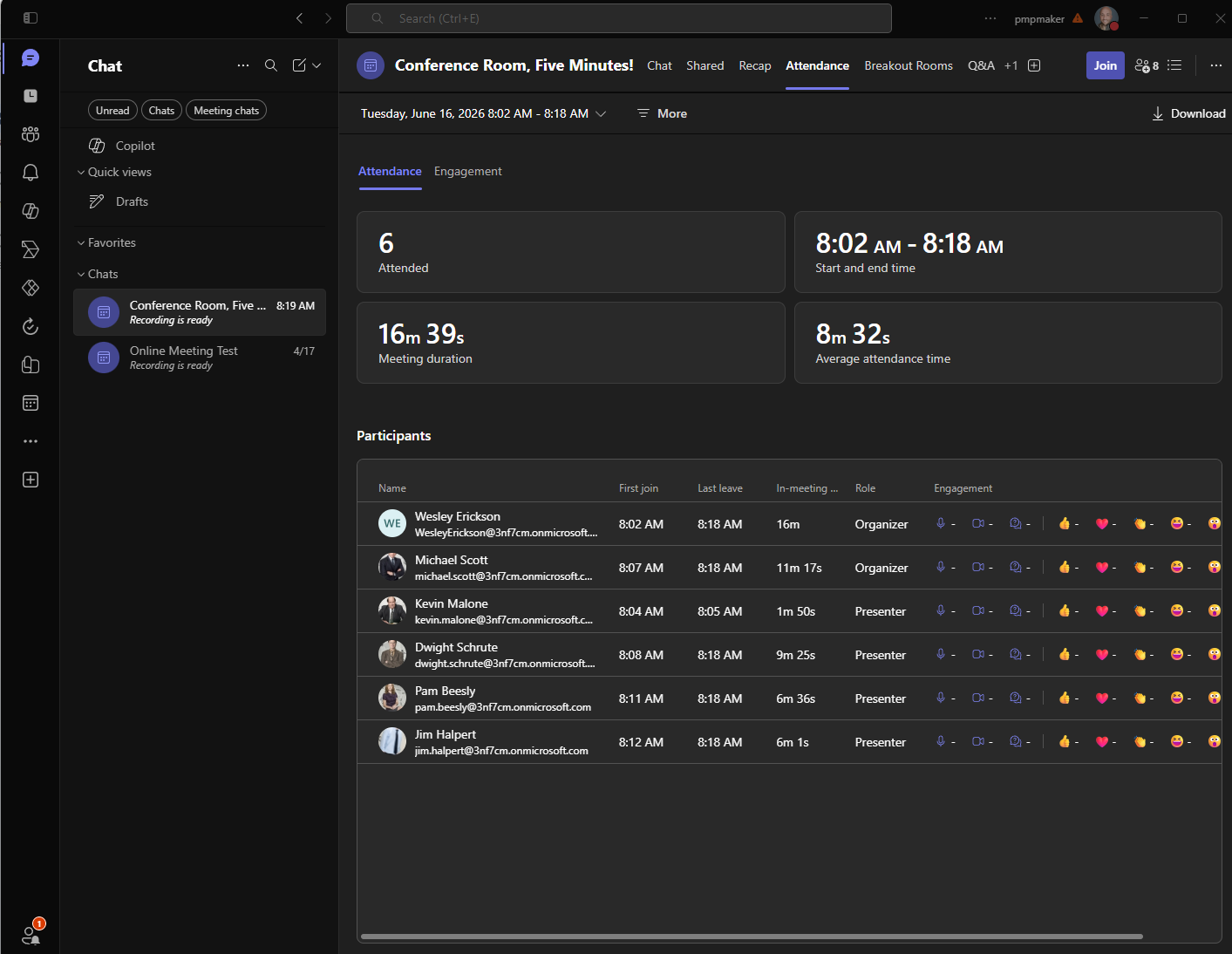
- The attendance data exists, but almost no one retrieves it. Teams records verified join times, leave times, and duration for every participant in every online meeting. Downloading that data requires navigating to the meeting, finding the Attendance tab, and clicking Download — a process most organizers skip entirely.
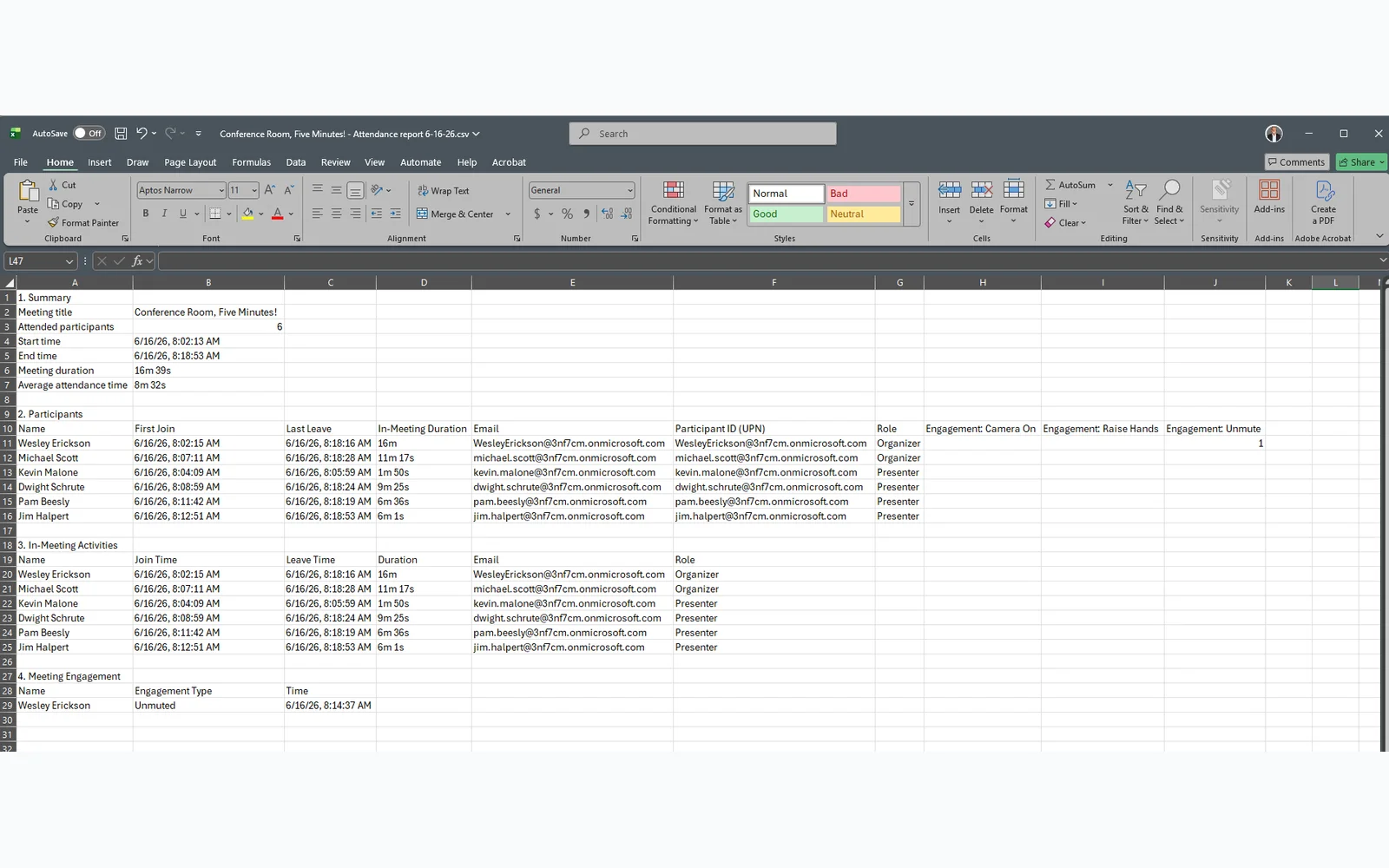
- The downloaded CSV is more complete than most people realize. It includes participant names, join and leave times, in-meeting duration, role, UPN, and engagement data. It is the verified record, not an inference.
- The native Teams connector in Power Automate does not expose attendance data. The “Get an online meeting” action returns the invite list, not attendance records. Join times, leave times, and no-shows are not included.
- The Graph API has the verified data. The
onlineMeetingsattendance report endpoint returns confirmed join and leave times for every participant, recorded by Teams directly. - A Power Automate flow closes the gap. One custom connector, four delegated Graph permissions, and a flow that runs in under a minute deposits a complete invited-vs-attended Excel roster in SharePoint automatically.
Teams records attendance for every online meeting you host. Every participant’s join time, leave time, and total duration is captured and available the moment the meeting ends. Almost none of that data ever makes it into a spreadsheet, a SharePoint list, or any reporting system.
The reason is simple: getting to it requires manual steps, and manual steps get skipped.
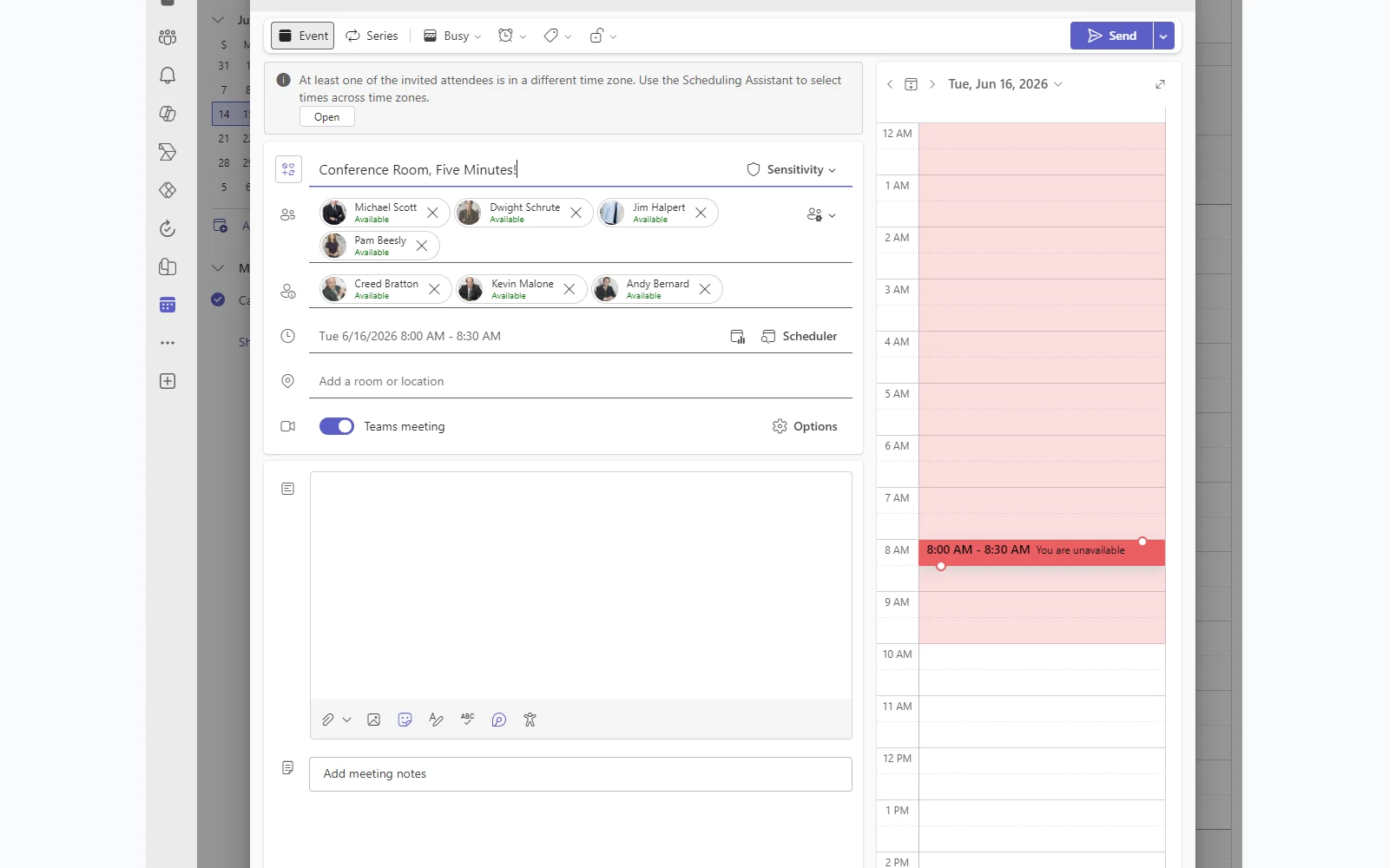
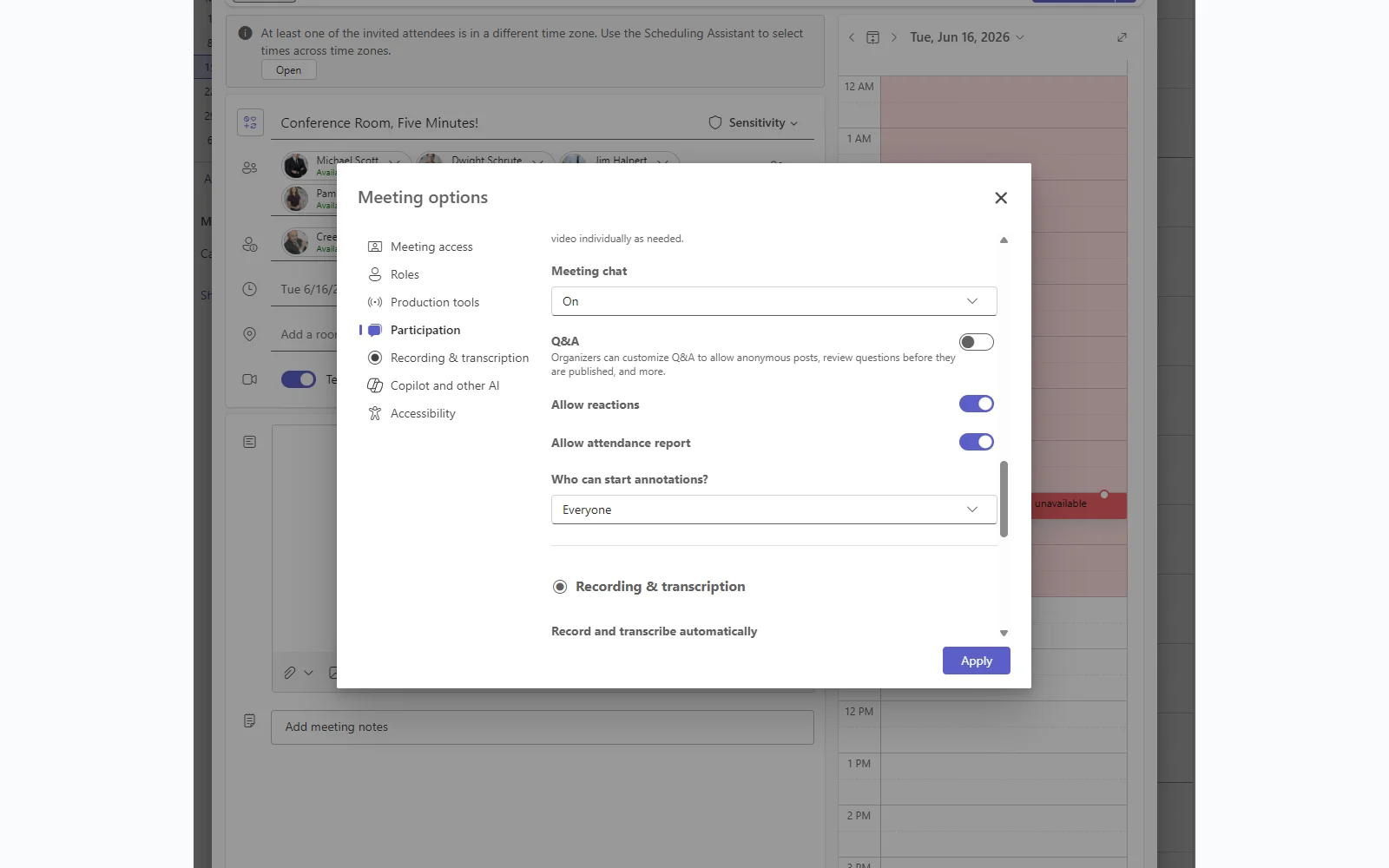
To download the attendance report from a Teams meeting, you need to find the meeting in your Teams calendar or the meeting chat, navigate to the Attendance tab, click Download, and then open the CSV in Excel or another tool. Microsoft documents the full process in Manage meeting attendance reports in Microsoft Teams. It takes several clicks through a UI that is not prominently surfaced, and the report is only available for a limited time after the meeting ends.
For a one-off meeting that matters, some organizers will go through this process. For recurring meetings, project status calls, and committee reviews, almost no one does. The result is a consistent gap: verified, Teams-recorded attendance data exists for every meeting but never reaches any downstream system.
This post covers why the gap persists, what the native Power Automate Teams connector does and does not give you, and how to close it with a flow backed by the Microsoft Graph attendance report API.
Why This Is a Problem
If enabled, two Microsoft features generate post-meeting summaries after a Teams call ends:
- Microsoft Copilot Intelligent Recap: AI summary with meeting notes and follow-up tasks. No attendance section.
- Collaborative Notes for Microsoft 365 Facilitator: a structured Loop document with agenda items, decisions, and action items. No attendance section.
Neither includes attendance data. That is by design, not a bug. The problem shows up in what happens next.
When teams notice the gap, the instinct is to ask Copilot directly. Someone opens Copilot chat, attaches the meeting, and prompts it for who attended. The output has names. It looks like a verified list. It is not. Copilot infers presence from the transcript and meeting chat. If you spoke or typed, you show up. If you joined and stayed on mute for the entire call, which is common in any meeting with a large invite list or passive observers, you are invisible.
The output looks like attendance data. It is participation data. For a casual team standup that distinction does not matter. For a go/no-go decision, a compliance review, or any meeting where attendance has downstream accountability, it is an accuracy problem wearing the appearance of a verified record.
Teams already has the right answer. The Attendance tab in every meeting shows verified join times, leave times, total duration, and role for every participant. This is recorded by Teams, not inferred. Getting it out of Teams and into a usable format is the gap this post covers.

What the New Native Teams Actions Return in Power Automate
Microsoft has been moving quickly on Teams automation in Power Automate. The standard Teams connector now includes triggers and actions that previously required custom connectors or Graph API calls: triggers that fire when a recording becomes available, when a transcript becomes available, and actions that retrieve that content directly.
I was already building a custom connector that wrapped all of the Graph meeting data types in one place: transcripts, recordings, AI insights, and attendance. When these native actions shipped, I reduced the scope. Transcripts, recordings, and AI insights are covered natively now. The connector in this post handles attendance only — the one data type the native connector still does not expose.
Here is what the “Get an online meeting” action actually returns.
The action takes a join URL and gives you the meeting object: ID, start time, iCalUid, and a list of invited participants. That is useful and simplifies several steps that used to require a Graph API call.
What it does not return: join times, leave times, duration, or any indication of who actually showed up. The participants array is the invite list, not the attendance record. Attendance is the one gap the native connector leaves open, and it is the gap that matters most when a meeting has downstream accountability attached to it.
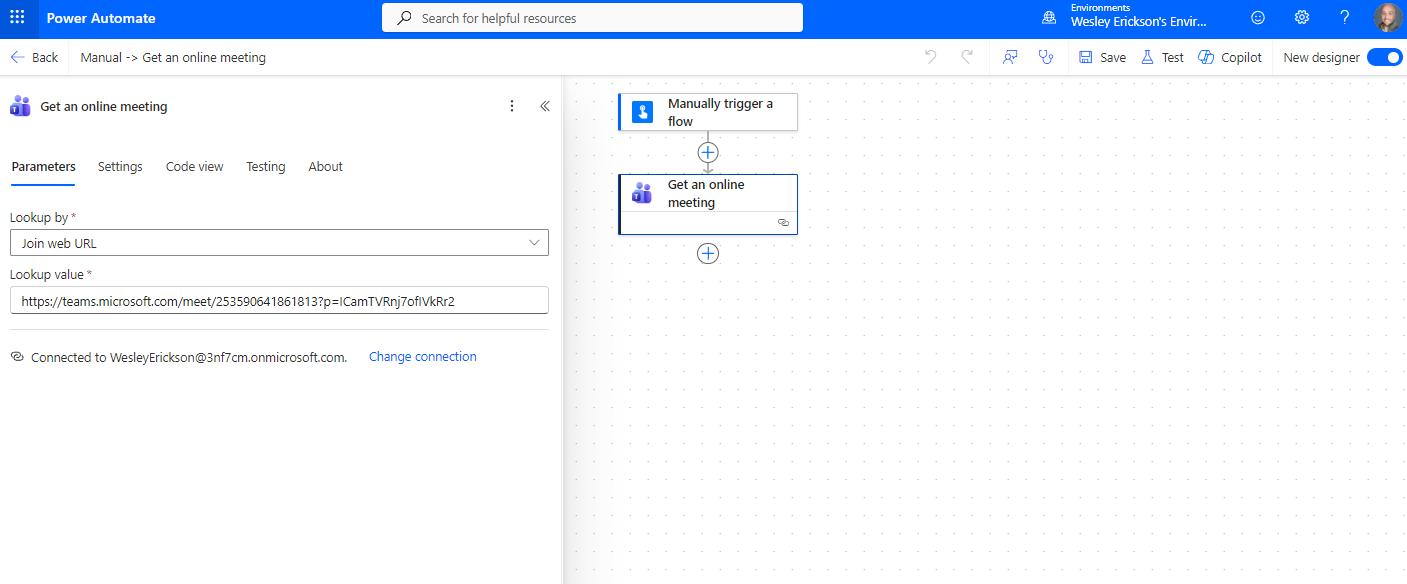
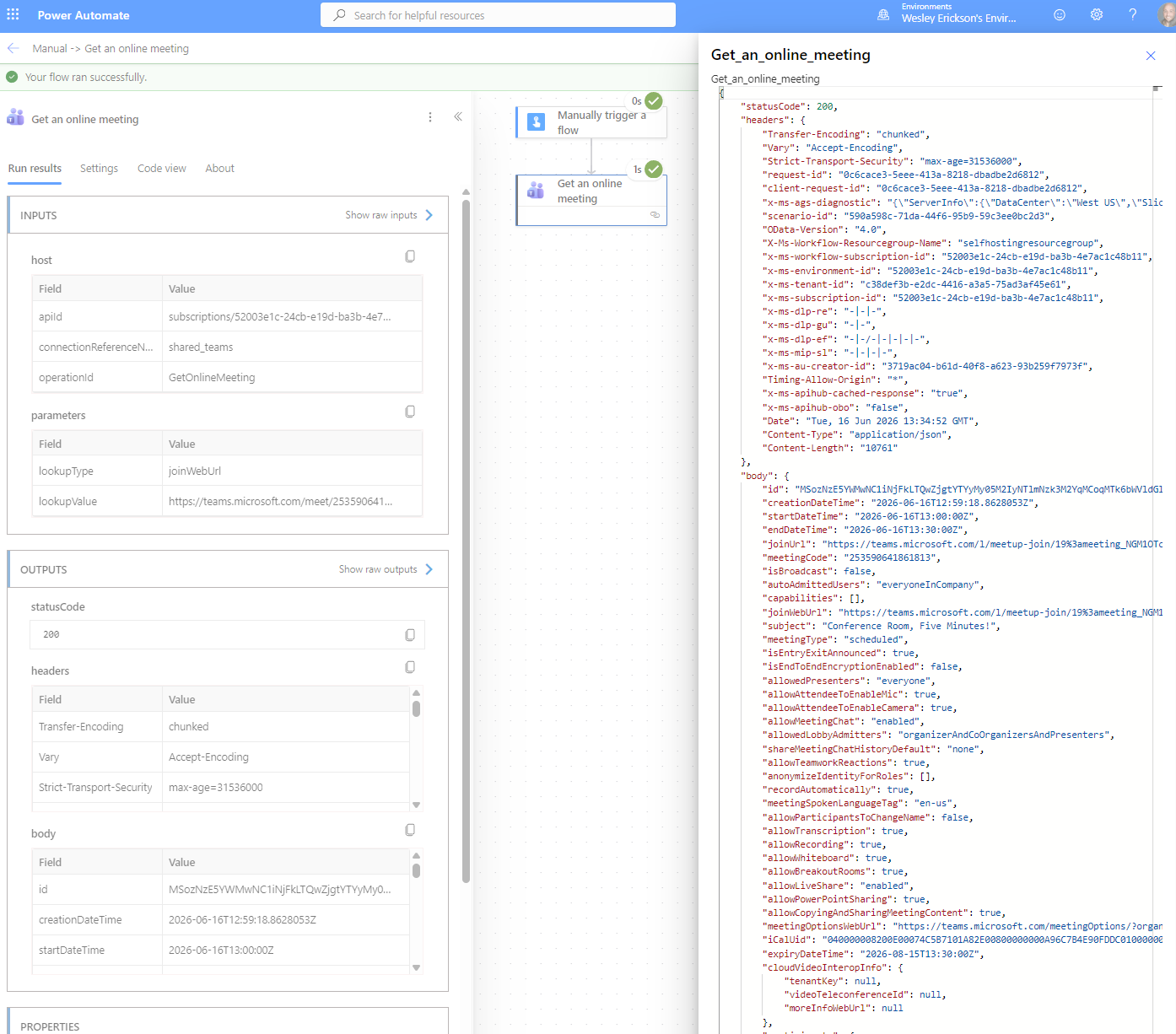
The native action replaces one step. It does not close the attendance gap.
What the Flow Produces
I built a Power Automate flow backed by a custom connector that calls the Microsoft Graph attendance report endpoint directly. Paste in a meeting join URL and trigger it. Under a minute later, a formatted Excel report lands in SharePoint.
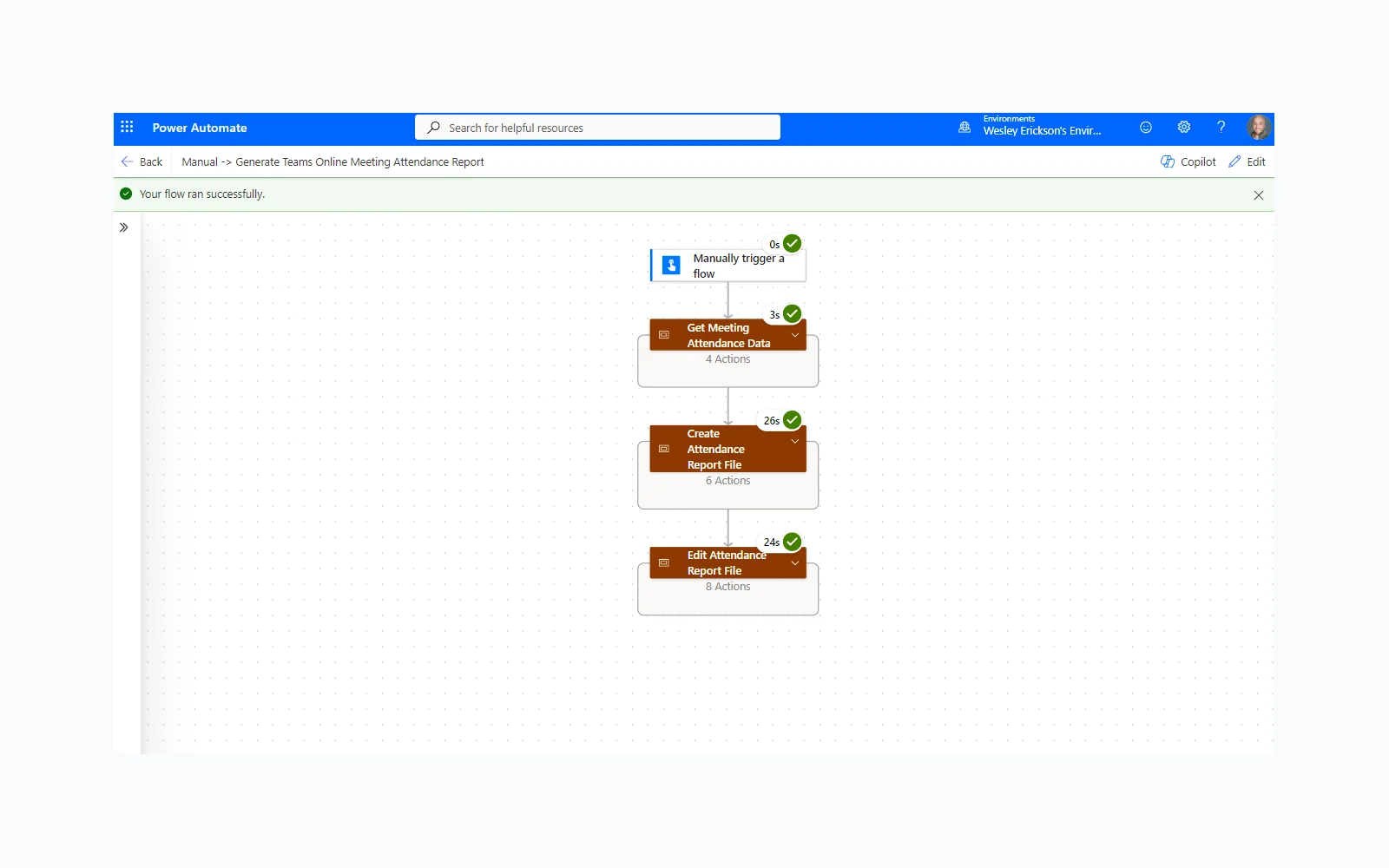
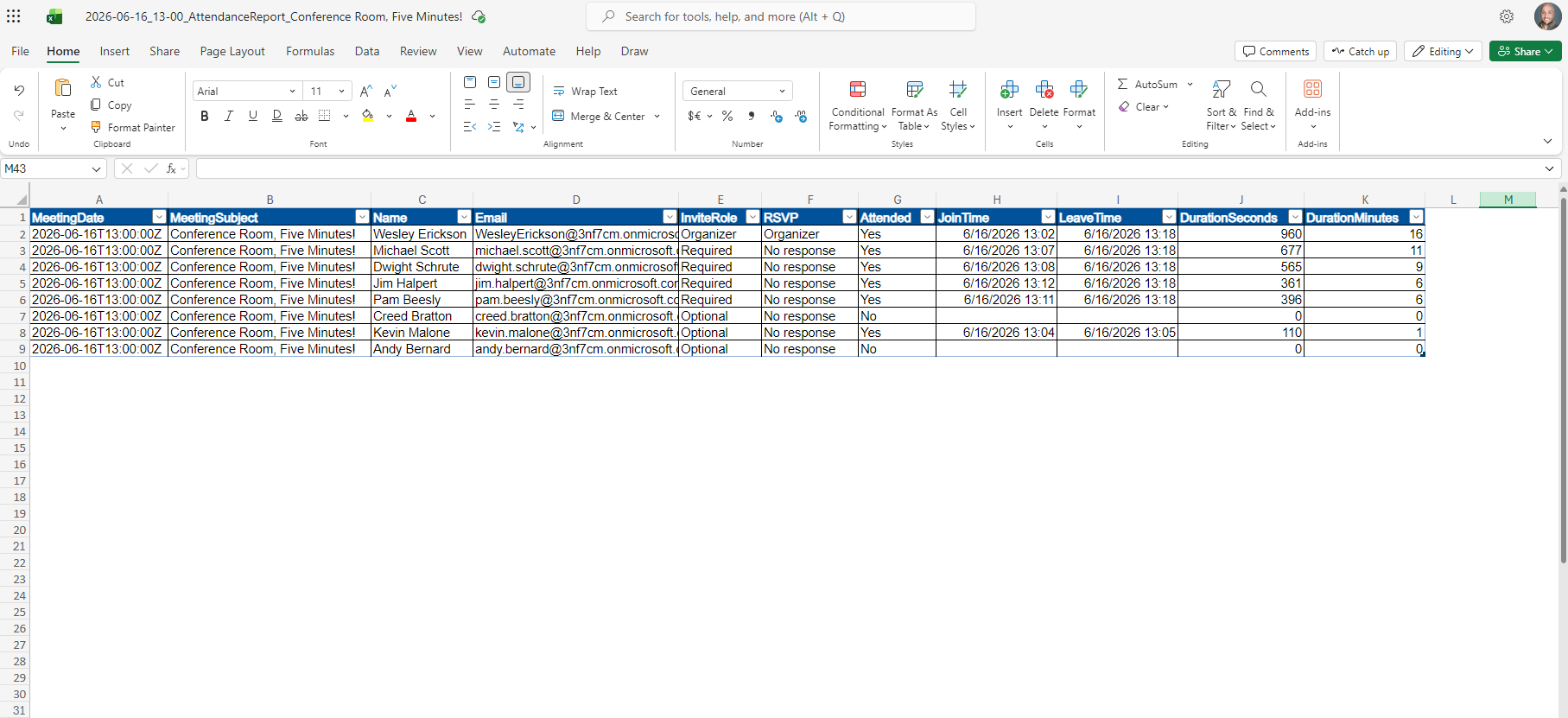
The report is more complete than the Teams CSV, but the trigger is still manual — you paste in a join URL and run the flow. Automating that step is the next iteration.
| Data | Manual download from Teams | Automated report (this flow) |
|---|---|---|
| Delivery | Download CSV per meeting, by hand | Excel file deposited automatically, per meeting |
| Invitees included | No — attendees only | Yes — full invite list |
| Required vs Optional | No | Yes |
| RSVP status | No | Yes |
| Join / leave time | Yes | Yes |
| Attended duration | Yes | Yes |
| No-shows | Not derivable from the file alone | Yes — invitees flagged Attended = No |
| Format | One CSV per meeting, mixed sections | Single Excel table, one row per person |
| Recurring meetings | Re-download every instance | Appends automatically |
This is the record Copilot cannot generate.
How the Flow Is Organized
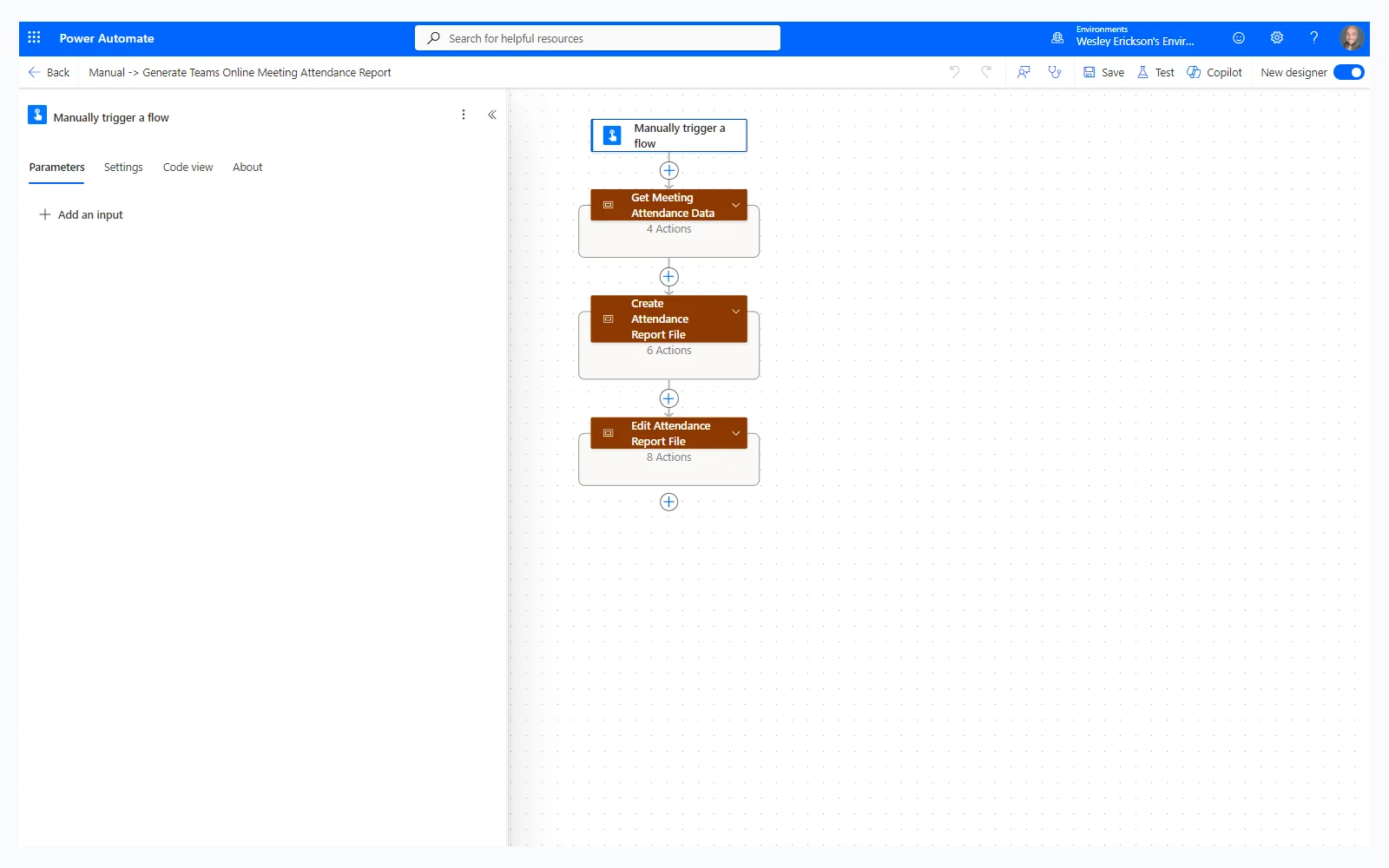
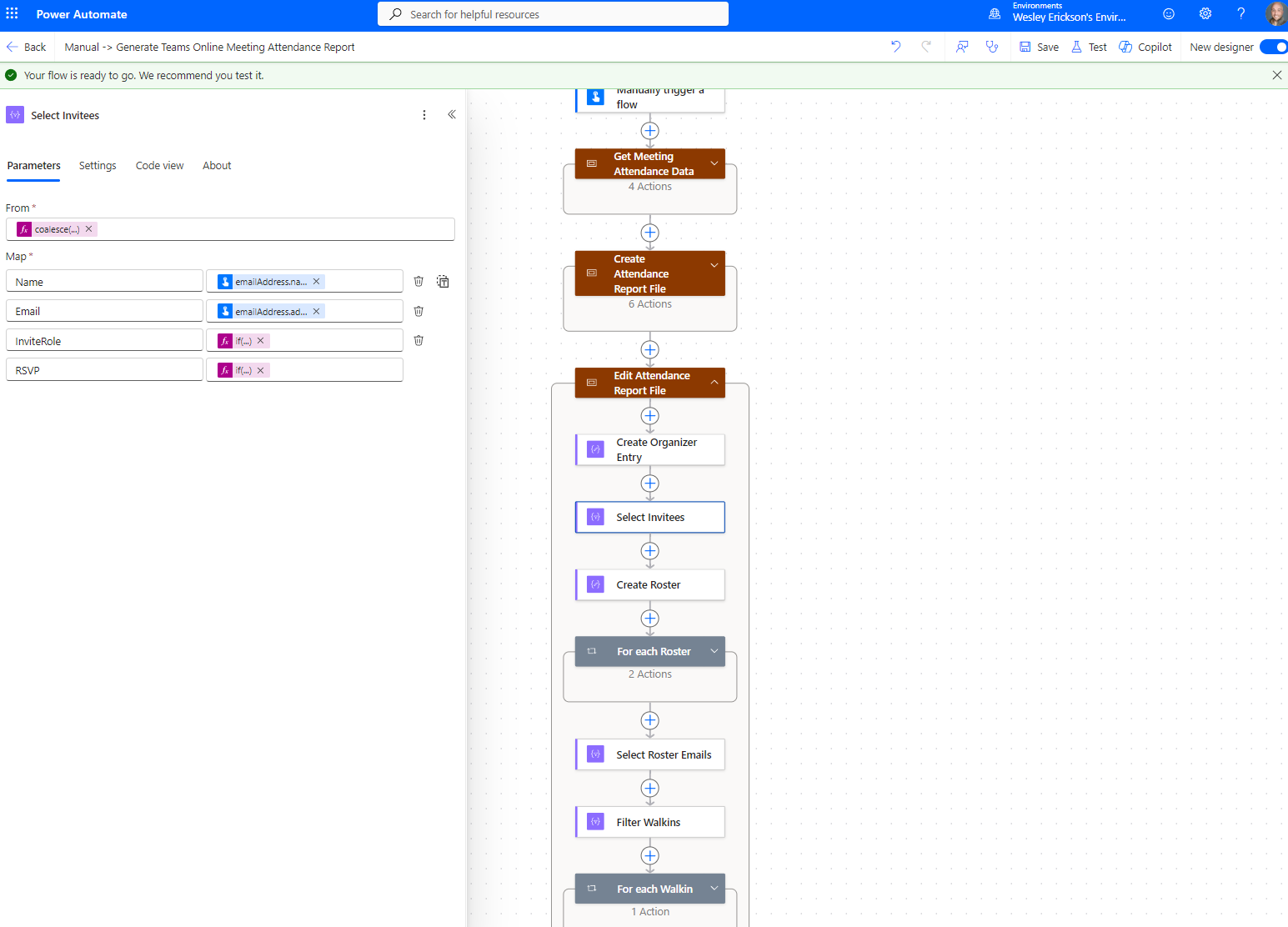
I organized it into three scopes to keep it readable.
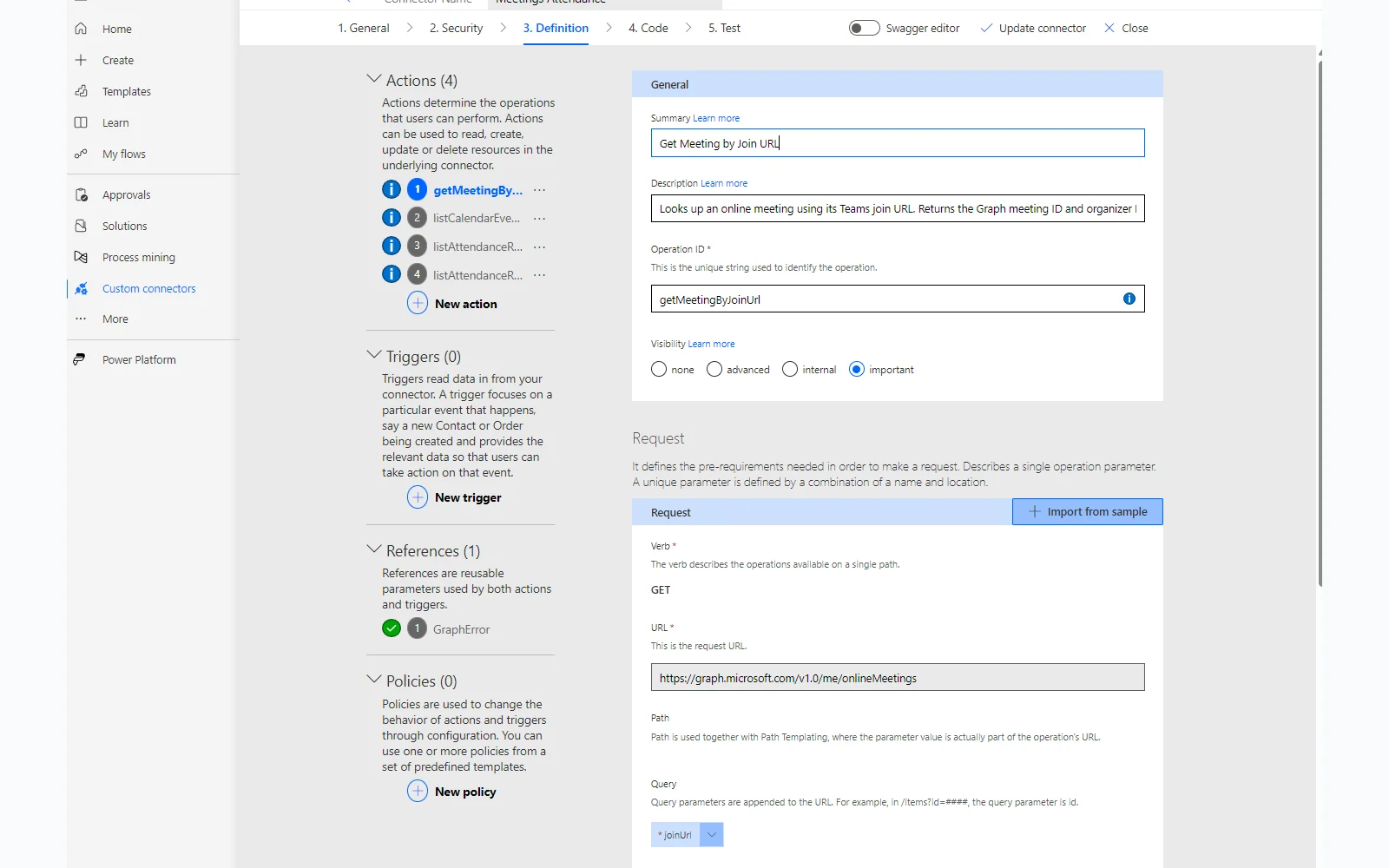
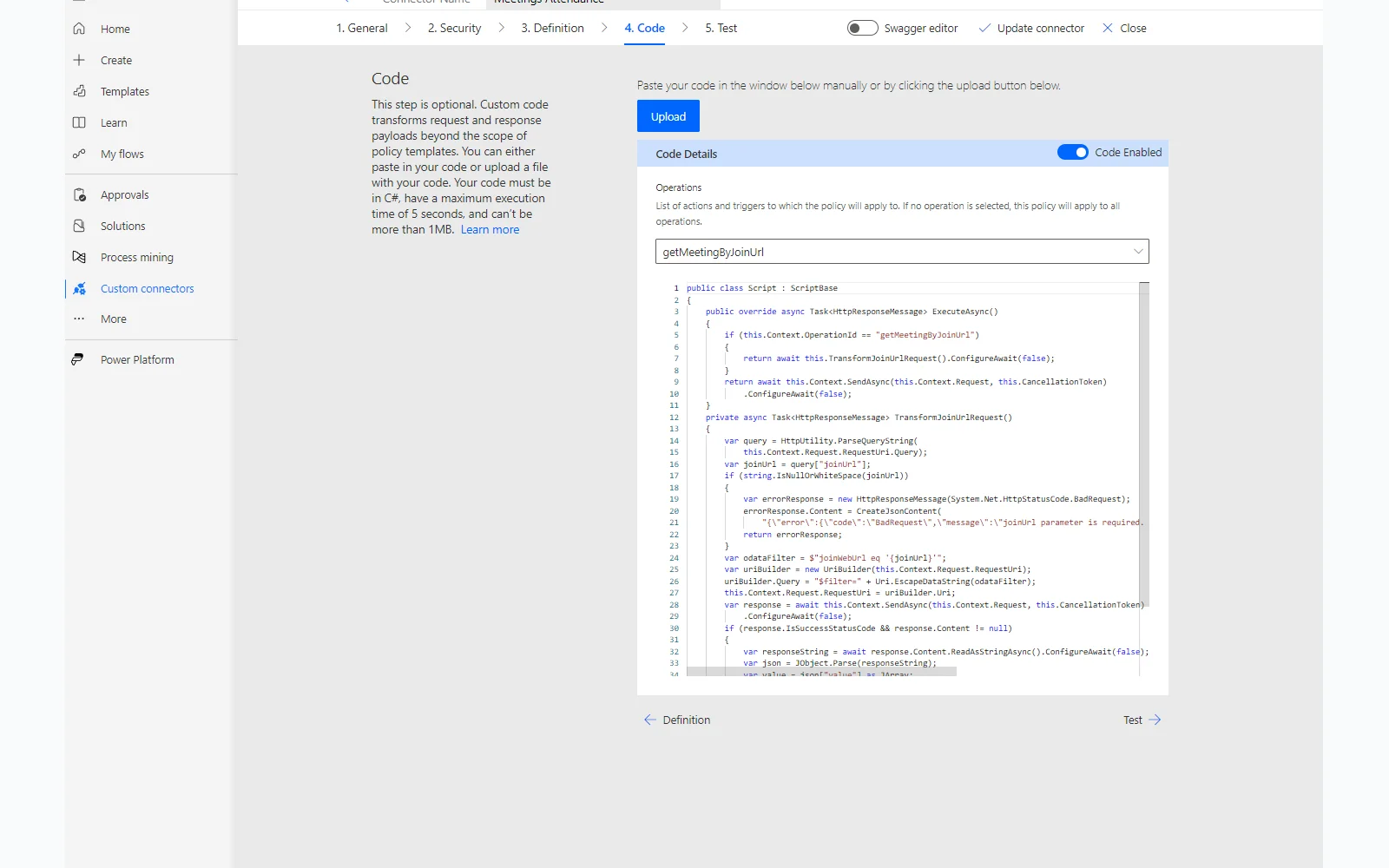
Scope 1 pulls four things from Microsoft Graph: the meeting object, the calendar event (for the invite list and RSVP data), the attendance report, and the per-attendee records with verified join and leave times. The calendar event is what makes the invite roster possible. Its iCalUId is identical to the iCalUid the meeting object returns, so I filter directly to the right event with no fuzzy matching. For the meeting object itself, the Graph OData filter returns a value[] array. Power Automate would normally auto-wrap every downstream action in an Apply to each. A few lines of C# on the connector’s Code tab unwrap value[0] into a single object so the rest of the flow reads fields directly.
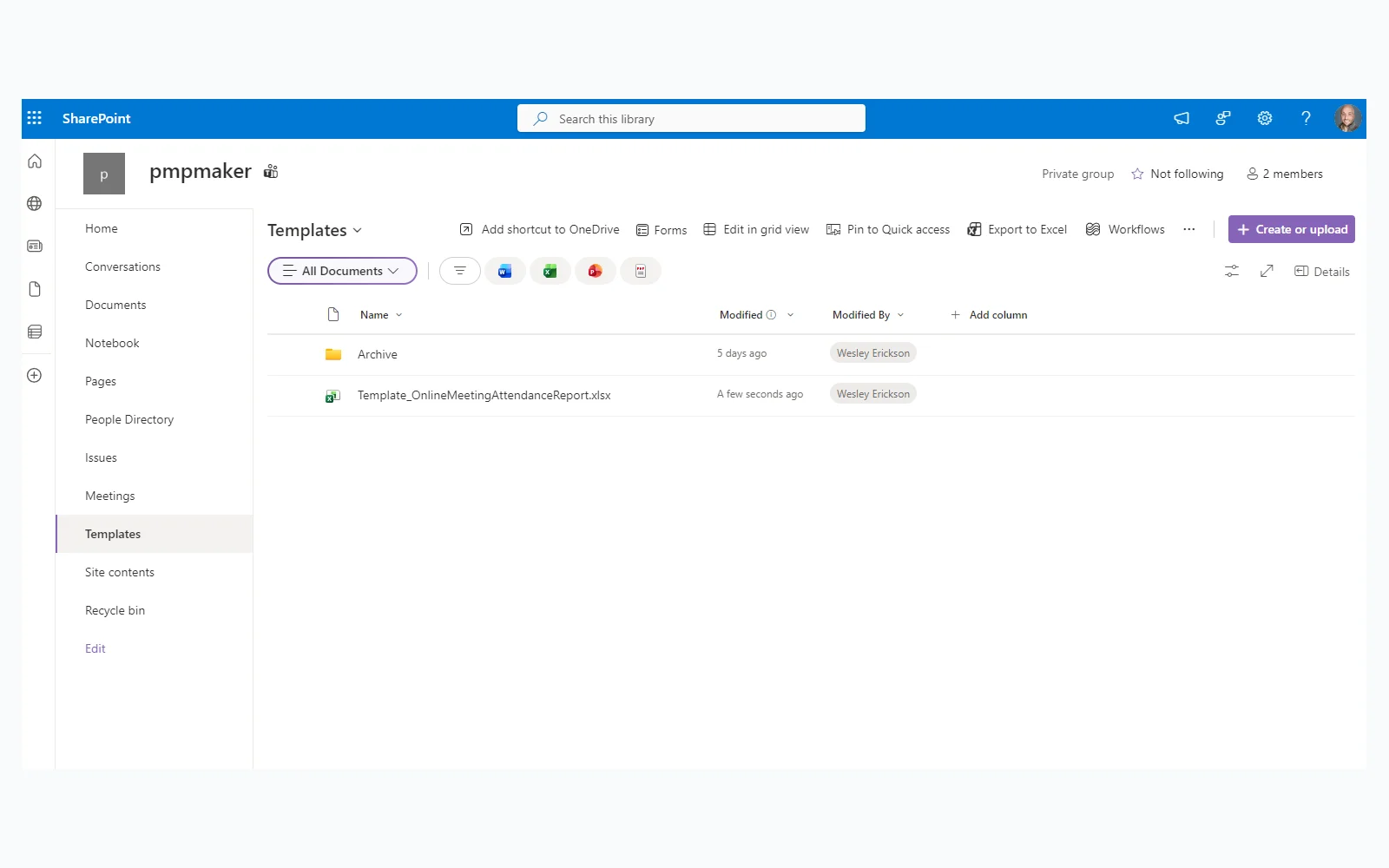
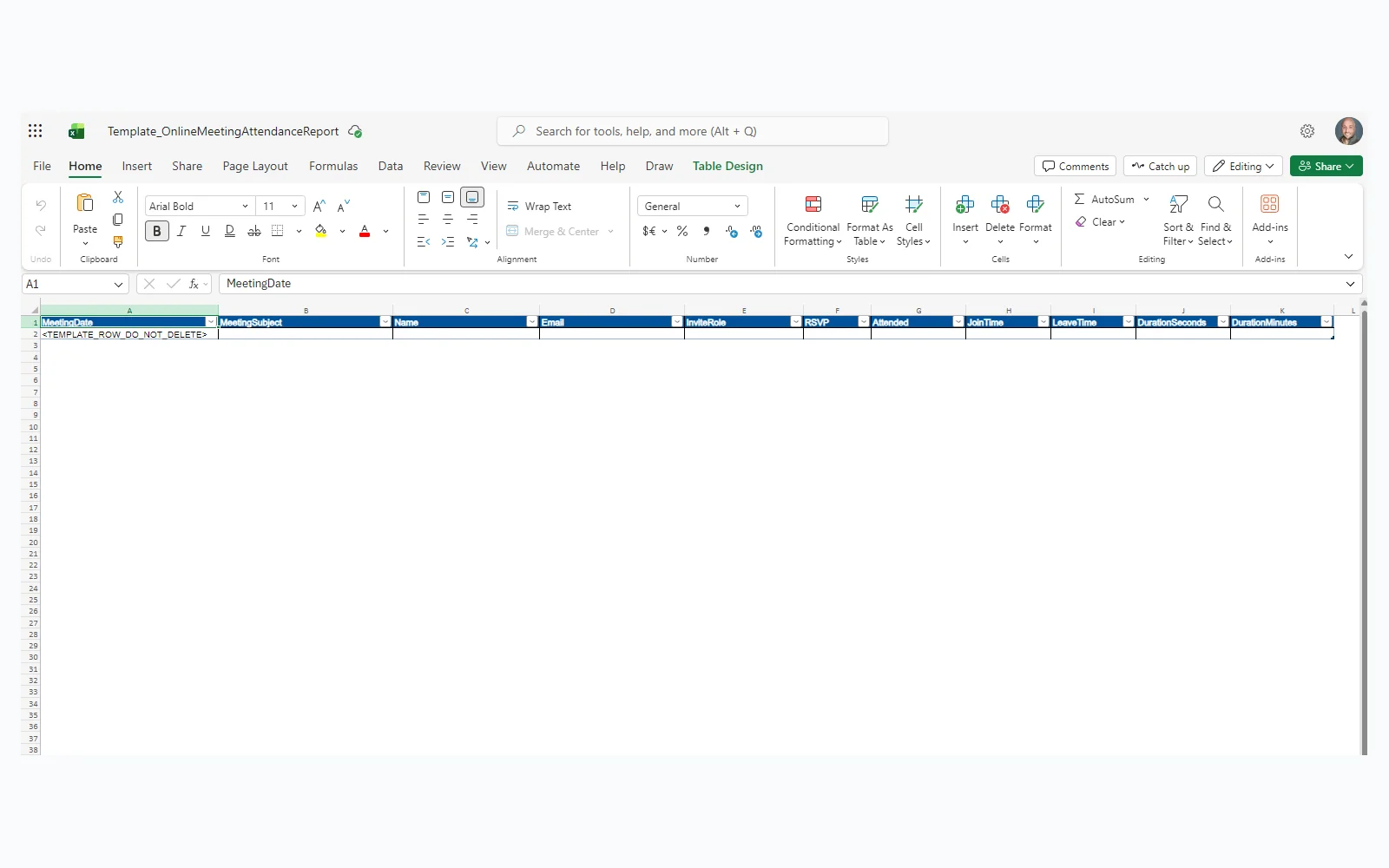
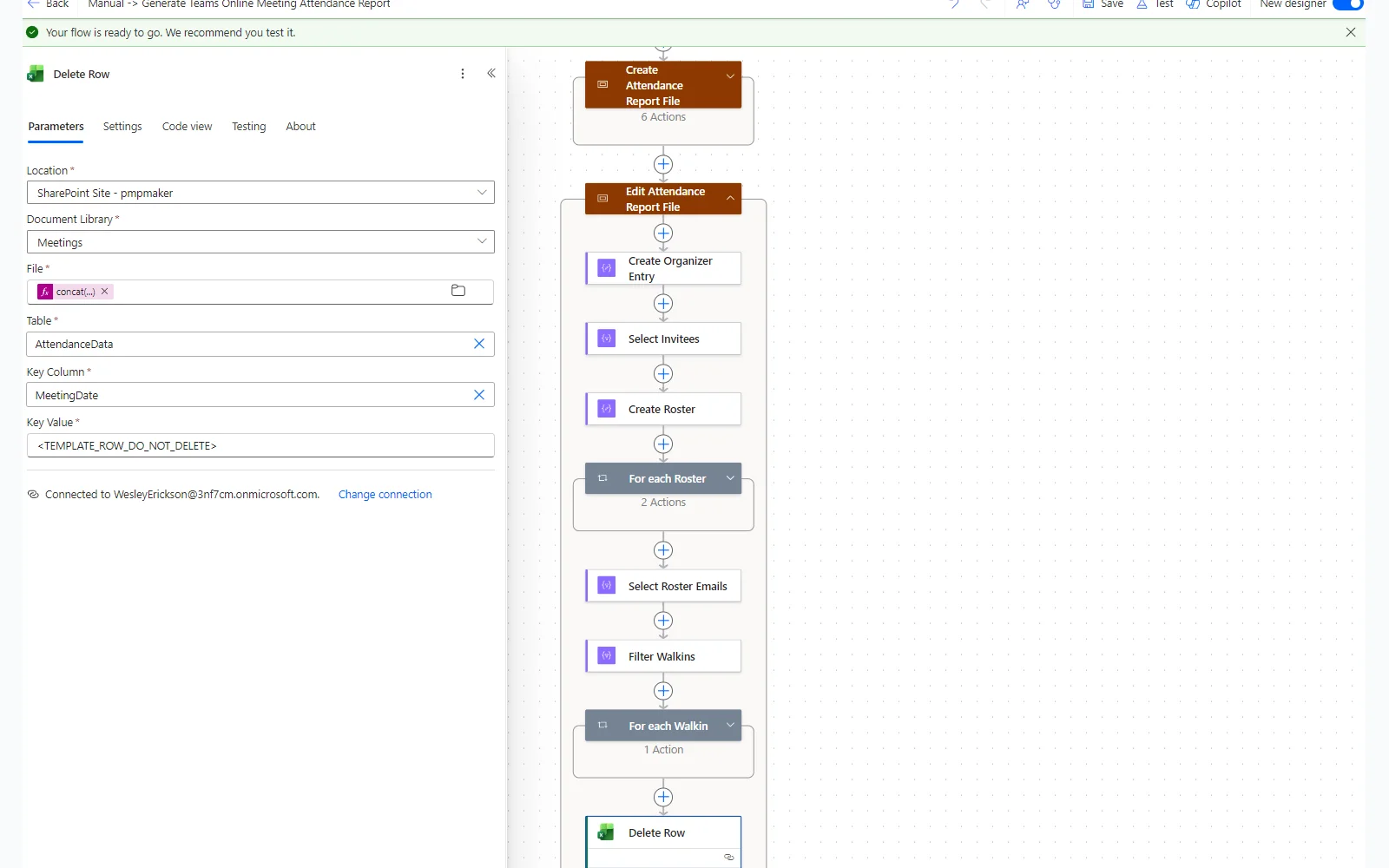
Scope 2 builds the output file. I generate a timestamped filename, read an Excel template from a SharePoint Templates library, check for an existing report with the same name and delete it if found, create the new file, then wait for Excel Online to register it. Two non-obvious requirements here: use the folder picker icon to select the template file rather than typing the path (the connector needs an internal reference the picker generates, not a typed string), and when targeting the report file for deletion, use the Identifier field from the SharePoint Get files action, not ID.
Scope 3 writes the data. I merge the organizer, the invitees, and the attendance records into one row per person and remove the template placeholder row at the end.
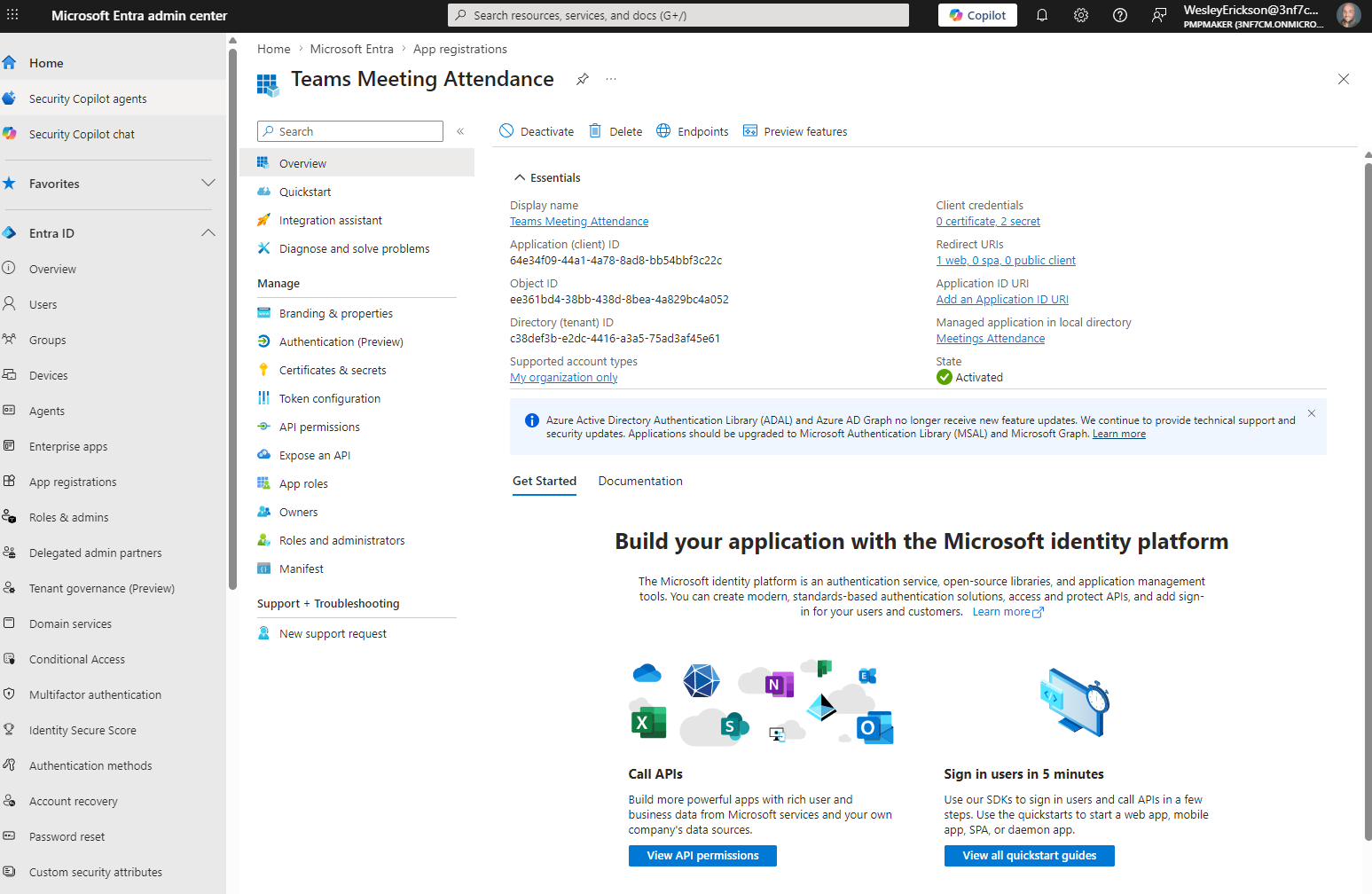
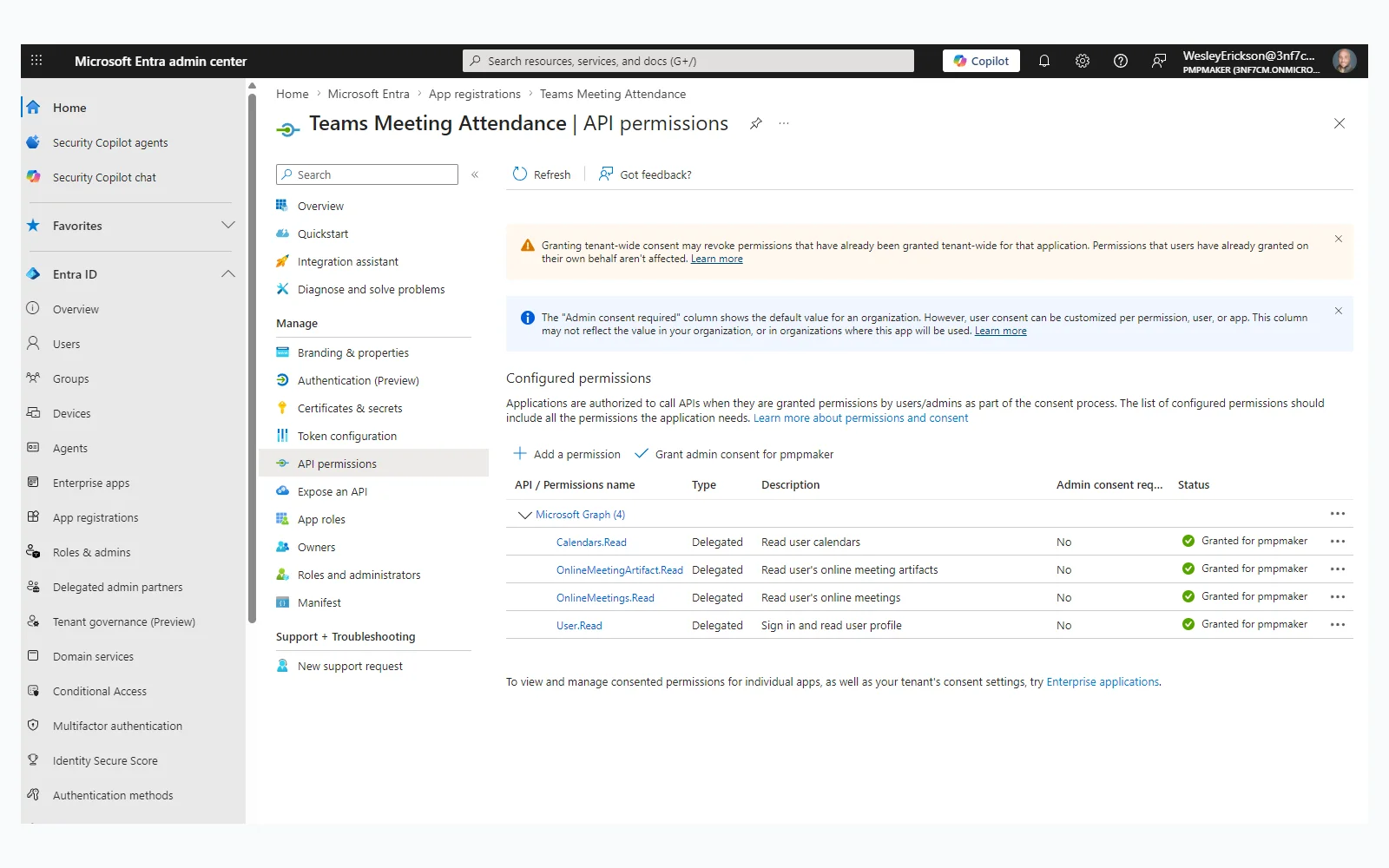
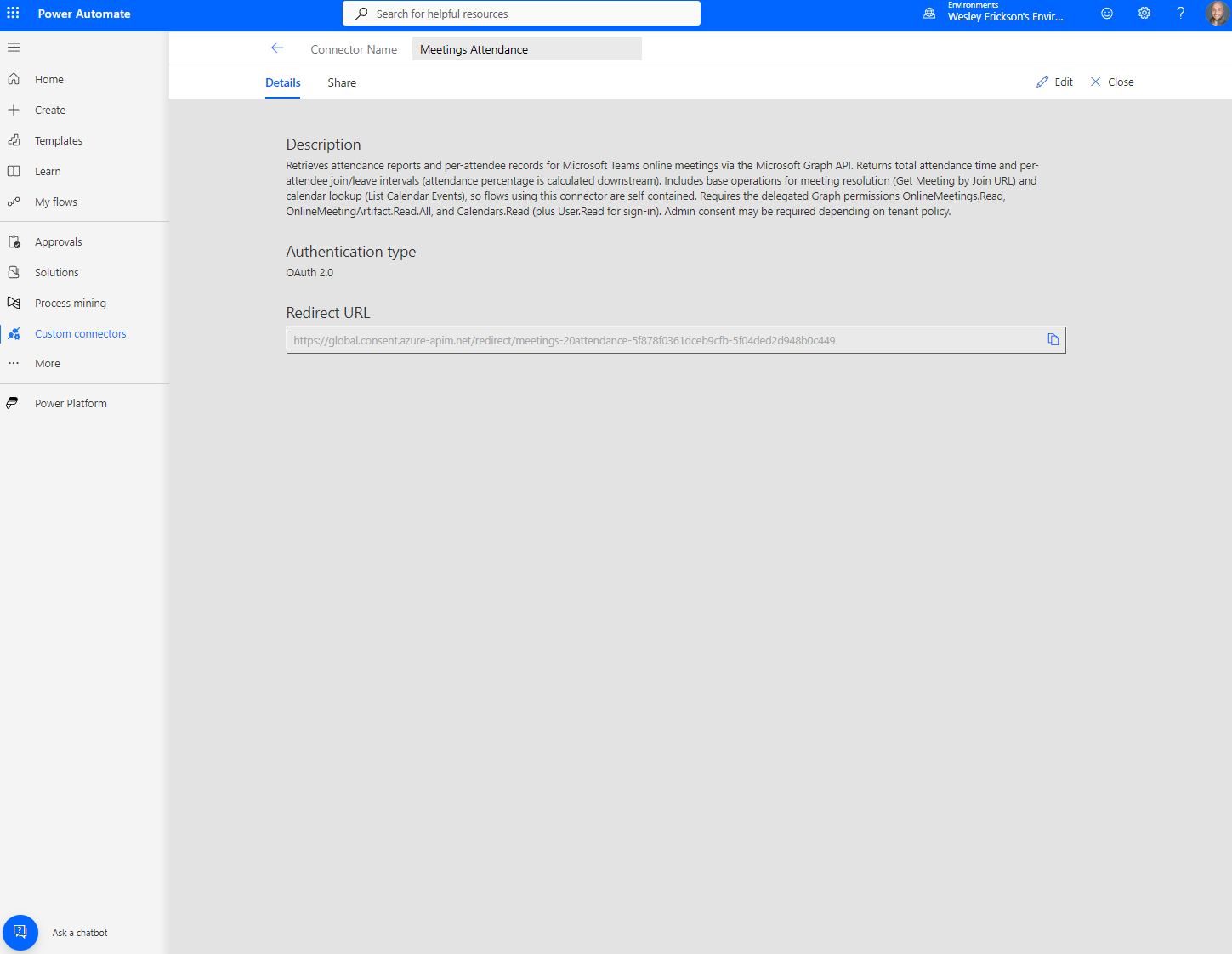
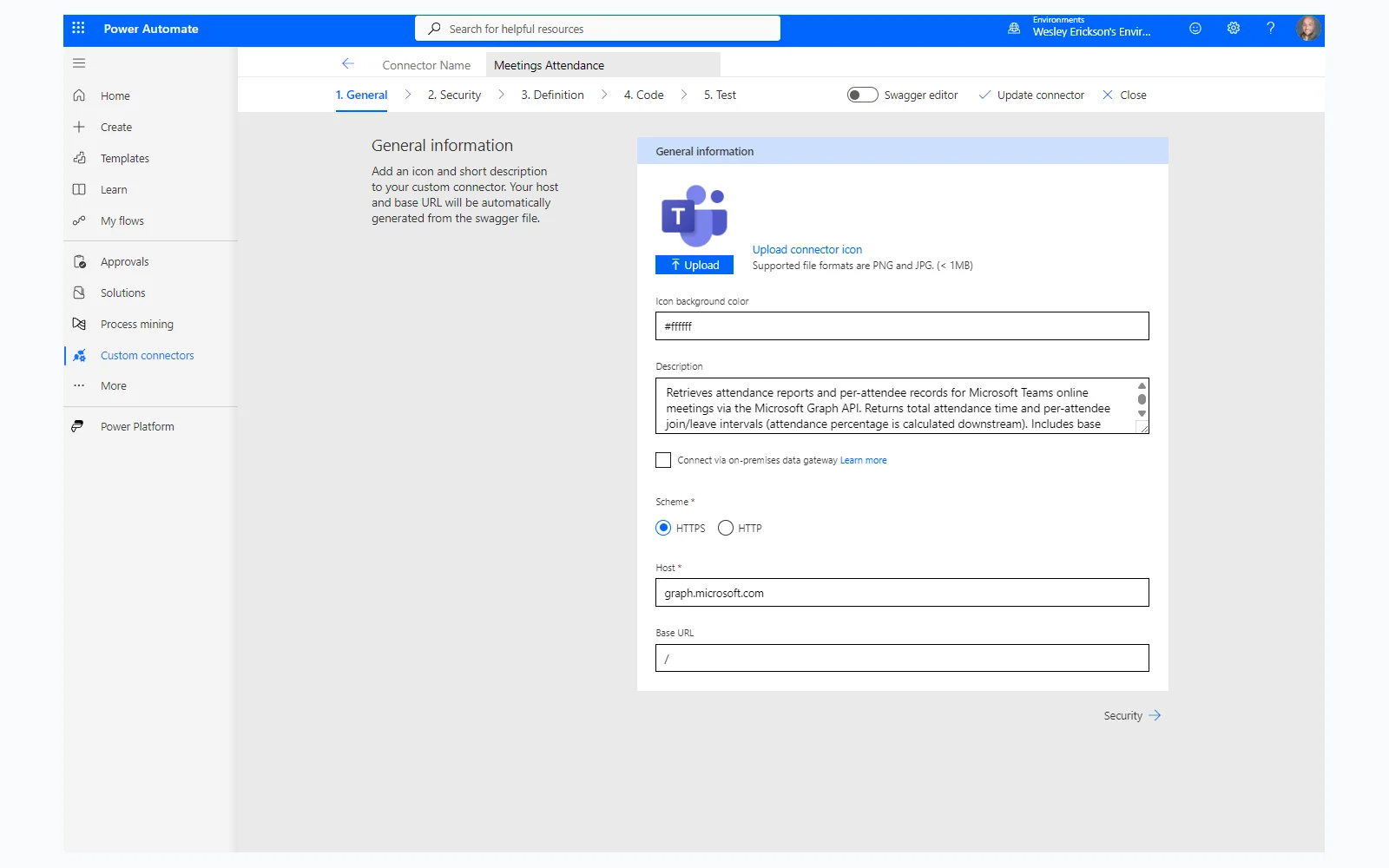
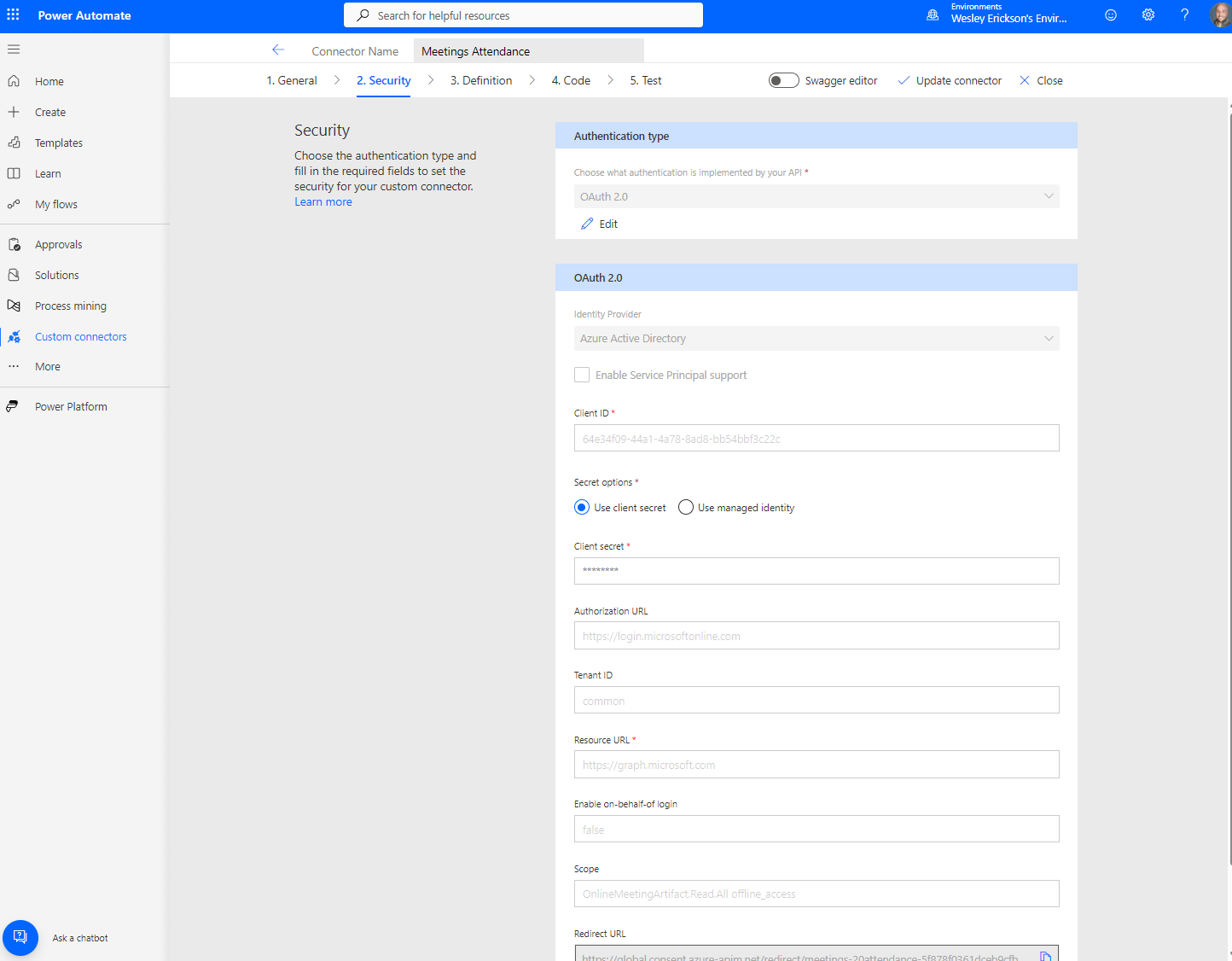
The flow uses a custom connector backed by an Entra app registration with four delegated Microsoft Graph permissions. Delegated means the connector can only access meetings the signed-in user already has access to: no tenant-wide access, no data outside your own meetings.
| Permission | Purpose |
|---|---|
OnlineMeetings.Read | Resolve the meeting object from its join URL |
OnlineMeetingArtifact.Read.All | Read attendance reports and per-attendee records |
Calendars.Read | Read the calendar event for the invite list and RSVP data |
User.Read | Sign in |
None of the four require admin consent by default.
Why Verified Attendance Matters
When attendance matters (a go/no-go approval, a steering committee meeting, a compliance review), you need a record that can be trusted. Copilot Intelligent Recap and Facilitator’s Collaborative Notes are useful summary tools but they do not capture attendance. The distinction matters when someone asks who was in the room for a decision that went wrong, or when you need to demonstrate that the right stakeholders were present for an approval.
The Graph API attendance report endpoint is the verified source. Teams records this data for every online meeting. This flow makes it accessible in the format your team can actually use.
Keep Reading
If you build this for a recurring meeting series and hit something the gotcha section missed, drop a comment below. I update this post when I find a cleaner path.
This site is my public build log: what I built, what failed, what changed, and what I would do differently. If you are trying to reduce handoffs, clarify ownership, and make workflows actually run,...
Stay in the Loop
Occasional emails when new posts go live. No spam, no sales; just PM insights, automation tips, and homelab notes.
Powered by Buttondown. Unsubscribe anytime.